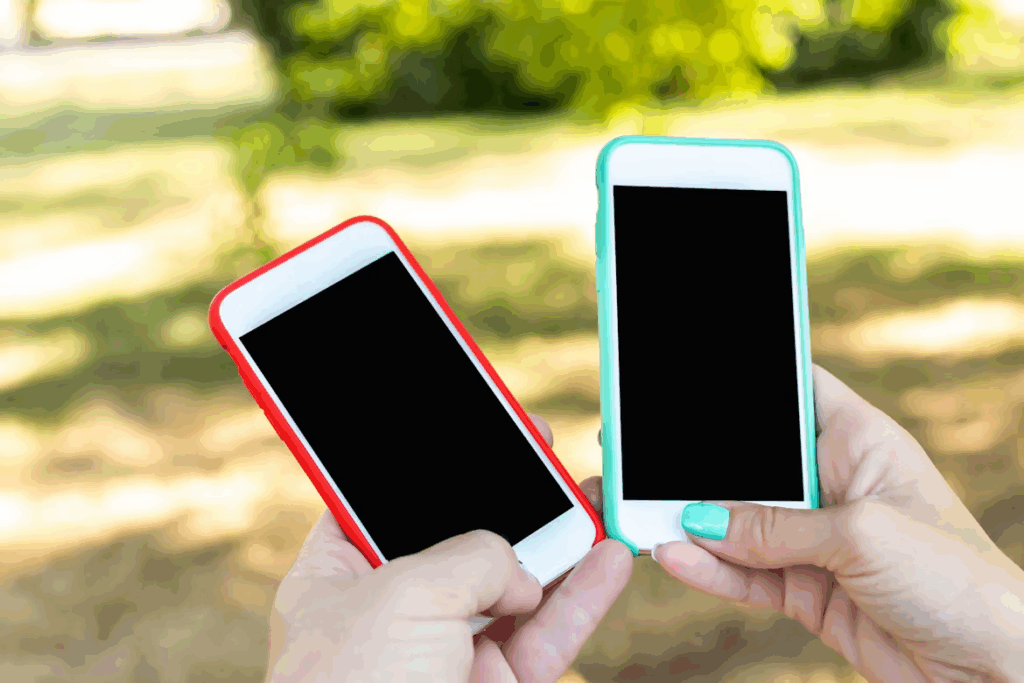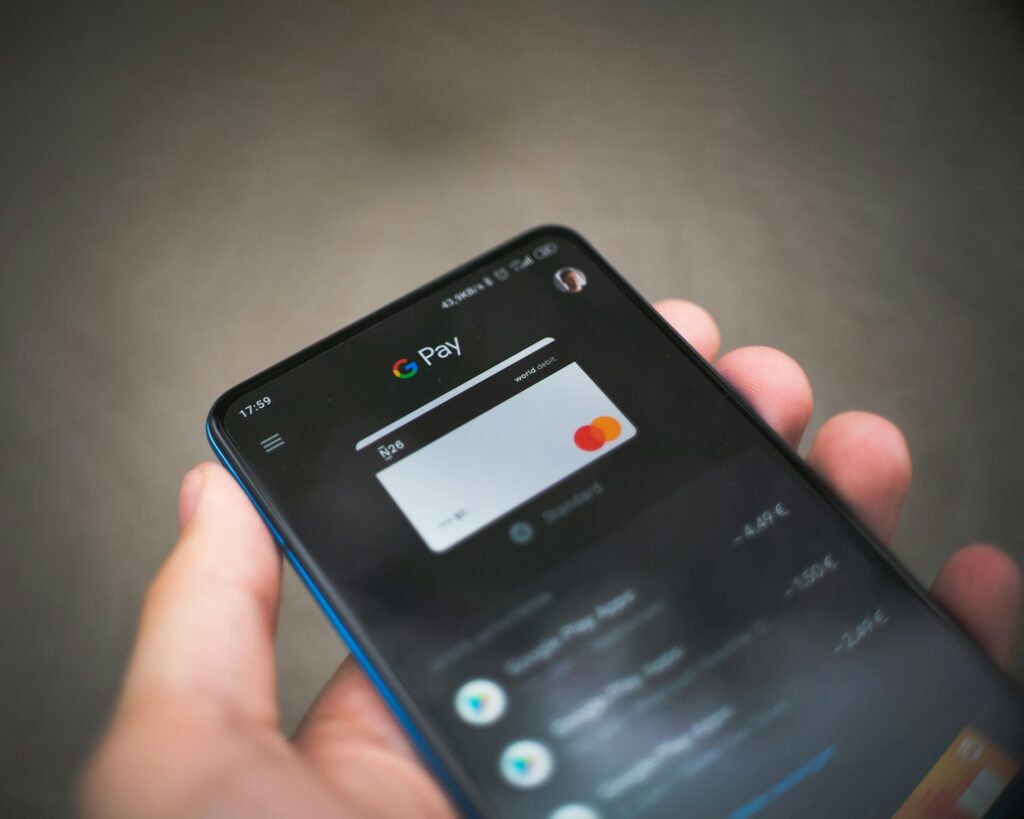
Sharing holiday photos with relatives, transferring files between devices, and sharing photos with yourself or others can seem time-consuming. Wireless file exchange using the new phones eliminates all that nonsense, so you can send files wirelessly in seconds without plugging in cables, downloading apps, or even needing an internet connection.
The iPhone does it through a remote desktop using AirDrop, and Android does it using Quick Share (or Nearby Share, if you have an older phone). They’re magic if you possess the easy way, and transfers are simple to accomplish by selecting what you are transferring and clicking on the recipient’s name.
Apple AirDrop: IPhone and Mac Default
AirDrop is available on your iPhone, Mac, and iPad, allowing files to be transferred from one device to another over Bluetooth and Wi-Fi, without the need for an internet connection. It is not pestering you when you don’t need it, and when you do, it is available at your fingertips.
To share AirDrop photos or documents, first enable Wi-Fi and Bluetooth on both phones in Settings. Open the document, file, or photo you’re sharing and tap the share button—that little square with the pointing arrow that’s everywhere on iOS. Tap and hold for a second or two, and nearby devices with AirDrop enabled will be listed in the share sheet at the top with rounded profile icons.
Step-by-step to send
1. Tap the document or image you want to send
2. Tap the share button (square with up-pointing arrow)
3. Show devices nearby at the top
4. Tap the device name or icon of the recipient
5. The recipient taps “Accept” on his/her device
Transfers are almost immediate for all files. The pictures will appear in the recipient’s Photos app, and files will appear in the Files app. If you can’t access the one that you’re sending to, which is unlikely, have them go to Control Center and toggle AirDrop to “Contacts Only” or “Everyone for 10 Minutes” instead of “Receiving Off.”
Privacy tip: Have AirDrop default to “Contacts Only” but switch it over temporarily to “Everyone for 10 Minutes” while accepting a document from a friend in your address book. This will prevent strangers from sending unwanted items.
Read More: Bluetooth Basics: Why It Won’t Connect and How to Fix It
Android Quick Share: Universal File Sharing
Android’s Quick Share native file transfer function has already had the older Nearby Share branding removed on most devices. Android tablets, Android smartphones, and even Windows laptops that have installed Quick Share as an application are all capable of utilizing the feature in a more cross-platform manner than AirDrop’s Apple-centric model.
Enable Bluetooth on each phone and place them side by side. Open the document, photo, or file you want to share, and then press the share icon. Search for “Quick Share” or “Nearby Share” in the list of available options; this may vary depending on your Android version and phone model.
Example: You are dining in a restaurant and you need to share the food menu pictures with the person next to you. You browse your gallery, select the photos, hit Share, and then choose Quick Share. Their device appears as an available option. You hit on their device name, and they receive the request to accept sharing. Pictures appear on their gallery in mere seconds, without requiring any cellular data or email addresses.
Quick Share also has a QR mode if the receiving device is not auto-showing. Show your QR code on your phone, ask them to take a photo of it with their camera, and the sharing starts.
Troubleshooting hint: If the hardware is not appearing, briefly turn on location services for a second or two on both phones—Android uses location services to attempt to locate nearby hardware in an effort to lock them down.
Read More: Stop Getting Locked Out! Easy Password Tips
Samsung Quick Share: Other Galaxy Features
The Samsung Galaxy also features a couple of extra Quick Share features not found in regular Android. Samsung’s model allows five individuals to share at the same time, and private sharing erases files after a specified time delay.
The feature is Samsung’s interpretation of bare Quick Share with controls. After you’ve picked your file and pressed Quick Share, you can dictate to receivers whether they can share the file with another person, or whether it’ll delete automatically when opened by default. The controls place Quick Share almost on the same level for sharing sensitive documents or deadline-sensitive pictures.
Samsung also supports Quick Share with Samsung TVs and tablets, as well as Apple devices. Share business reports to Galaxy tablets or photos of family members to the Samsung TV when family members are present, without the need to attach via email.
The key features of Quick Share are:
- Share files to up to five devices at a time
- Schedule the timer for sensitive information
- Share to Samsung TVs and home appliances directly
- Quick Share app was on Windows PCs
Cross-Platform Flaws and Workarounds
The largest limitation of all these file-sharing features is that AirDrop is Apple-to-Apple and Quick Share is Android-to-Windows. You can’t AirDrop an iPhone to an Android device or Quick Share an Android device to an iPhone natively using these native capabilities.
To post on the platform, one can utilize cross-platform cloud services like Google Photos, Dropbox, or iCloud shared albums. Or simply use messaging applications like WhatsApp and Telegram, which compress files and deliver them in real-time on any device. These utilize the internet but bypass the limitation of compatibility when sharing with iPhone and Android telephone users every day.
Both utilities accomplish the same thing: turn Bluetooth on, select the file you want to send, choose a local receiver, and send files in real-time. Try loading your own pictures onto your own devices and turn those confidence levels up high. Then, begin daily sharing using these devices, and goodbye to email attachments. Tired of those email attachments? Open a picture, tap Share, and discover how simple wireless file sharing is.
Read More: Cloud Storage Explained Like You’re 5